Accessibility Assistant for Figma v53: From Design Decisions to Handoff


In an internal analysis of accessibility bugs, a colleague found that roughly half could be traced back to design decisions. These were issues we should have caught earlier, before those decisions became codified in code and long before anyone encountered them in a shipped product.
That’s one of the reasons I started working on Accessibility Assistant for Figma. I wanted to help designers catch issues while they worked and help them build their accessibility knowledge along the way. Version 53 brings more of that work together, organizing annotations, assessments, issues, and handoff around projects.
In my previous post, I talked about the foundational work we were doing: moving to Figma-native Dev Mode annotations, simplifying annotation management, and making the plugin sturdier. This release builds on that foundation and offers a clearer path to “ready.”
Make the experience explicit
Consider a dialog. Often, there’s a “close” button in the upper corner. Reading top to bottom, that might be the first interactive element you’d encounter. But is it the first element that should receive keyboard focus when the dialog opens?
Perhaps. But if someone has opened a dialog to complete a task, directing them to the “close” button can feel a bit like opening your front door to greet a visitor and skipping right past the pleasantries to ask if they’d like you to shut it again.
Where they should start depends on the function of the dialog. If someone opened it to fill out a short form, the first field is probably the best place to start. If they need to read some text, placing focus on the heading or first paragraph can help them start at the beginning. If they’re confirming an irreversible action, there’s a case to be made for focusing the least destructive option.1
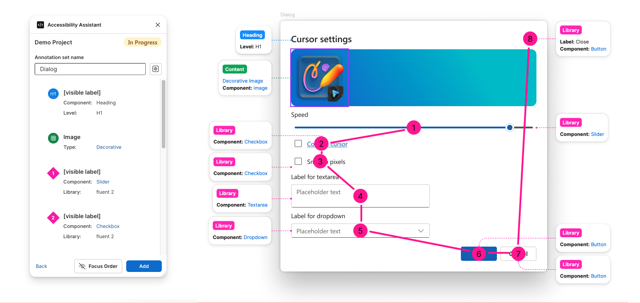
The Focus Order overlay makes the intended keyboard sequence explicit: start with the speed slider and reach the close button last. The plugin lists the dialog’s annotations on the left, with matching callouts on the canvas.
These are user experience decisions that have a profound effect on the accessibility of a UI. Thinking about them through a disability lens helps us describe an experience that doesn’t depend on someone seeing the whole screen or using a mouse.
A picture of a user interface doesn’t communicate this nuance. Annotations do. Recording design intent using annotations provides guidance to the people implementing the design and reduces the guesswork.
Keep the work organized
In previous versions of Accessibility Assistant for Figma (and A11y Focus Order before it), you could create sets of annotations and assess your project’s accessibility, but those activities were disconnected and frequently tied to a page within the Figma file.
That page-based organization doesn’t fit everyone’s workflow. It also makes it harder to remember whether the accessibility checklist you created applies to the entire UI or just a single screen.
In v53, we’ve organized the entire experience around “projects.” You can create a project at the page level (the default) or build one around a single screen or multiple screens within a page. You can also name the project, set its target platform (e.g., Web or iOS), identify the design system being used, and note whether it’s connected to work happening outside of Figma, such as in a GitHub issue. Each project comprises one or more annotation sets, its own assessment progress, and any issues you uncover.
Already using Accessibility Assistant? When you launch v53, it gathers any existing Dev Mode annotations and checklists from the current page into an Imported project so you don’t need to start over. You can discard that project and start fresh if you prefer. If you open a file with legacy (non-Dev Mode) annotations, we leave those alone and don’t import them.
The plugin now supports a larger set of target platforms: Web, Android, iOS, macOS, Windows Win32, Windows WinUI 3, and Windows WPF. The platform you choose determines which annotations are available within that project. That context matters because controls don’t all behave the same way, and keyboard navigation conventions differ. We’ve also improved focus-order calculations to account for platform-specific focusable roles, focusable children, and controls that use arrow keys or internal navigation.
In the updated UI, you can also visualize the focus order of an annotation set directly on the canvas while editing it. That gives you a way to inspect the intended sequence alongside the design, rather than trying to hold the whole thing in your head.
Review, learn, and follow through
We’ve reorganized the assessment checklists around the four Web Content Accessibility Guidelines principles: Perceivable, Operable, Understandable, and Robust (POUR). We’ve also rewritten the review guidance to support the decisions designers need to make.
New automated checks can flag concerns with contrast, target size, text resizing, reflow, and images of text. New canvas tools also support reviews of Focus Order, Reflow and Resize Text, and Use of Color to help designers make more informed decisions. These tools and checks are useful prompts for analysis, but they aren’t proof that a design is accessible. A greyscale view, for instance, can help you spot information conveyed only through color; it can’t tell you whether someone understands what an error message is asking them to do. Designers still need to exercise judgment and should involve people with disabilities in feature planning.
When a designer (or one of our automated checks) finds an issue, the designer can track it using the new Issues feature. This makes it easy to log findings along the way, then circle back to that work or delegate it to others. Unresolved issues also show up on the project overview screen, reminding designers of the work that remains before the project is ready.
Give the next person something useful
Another new feature enables designers to download an accessibility spec as HTML or copy it as Markdown.
That artifact can help an engineer understand how to build the UI, support reviews with accessibility specialists, and serve as a reference for documentation writers. We’ve also had really good results handing these specs off to AI code-generation models to help with UI creation and debugging. Of course, the resulting implementation still needs review and testing.
I discussed some of our early experiments with that last use at Microsoft Build. The spec gives us a way to carry accessibility intent beyond the design file, whether the next person doing the work is writing code themselves or directing an agent.
A few more improvements
We included a lot of everyday improvements in this release too:
- You can now resize the plugin within supported limits, and it remembers your preferred size.
- We’ve improved the accessibility of the plugin itself with settings for color scheme, text size, and control size. By default, the plugin adapts to your system’s color scheme or the one you’ve set for Figma.
- Keyboard navigation, focus treatment, semantics, announcements, contrast, non-color cues, and reduced-motion support are more consistent across the plugin now.
- Large operations, including duplicating annotated pages, stay more responsive. Imports do a better job of preventing duplicates and repairing inconsistent artifacts.
- Deleting annotated canvas items and switching pages clean up dangling annotation records more reliably.
One behavior worth calling out: if you delete the page that contains a project’s scope, that project will persist in the plugin, but won’t accept new annotations. We retain the project to avoid data loss. You can still delete the disconnected project to keep the plugin tidy though.
Many thanks to Divyanshu Dwivedi, Ashish Singh, and Ganji Srikanth from HCL, and Anna Cook, Michael Fairchild, Scott O’Hara, David Snow, and Ben Truelove from Microsoft. Some of the people who helped get us here are no longer with Microsoft, including Michael, David, and Ben; I’m grateful for the care and accessibility knowledge they brought to this work while they were here.
If you give the latest version of Accessibility Assistant for Figma a try, I’d love to hear where it helps you make a better design decision—and where you still need more support. You can also provide feedback directly to the team from within the plugin—just visit the About page.
Footnotes
The ARIA Authoring Practices Guide’s dialog pattern walks through these considerations. ↩︎
Webmentions
Likes
Shares